
A single wrong click can turn a shared file into a real headache. One person in my circle once received a “shared document” message, opened it, and lost access for hours. The link wasn’t real. It was a phishing trap.
If you share school work, contracts, or client files, you need secure file sharing skills. And you need them now, because phishing and fake links keep getting better.
This guide walks through the real risks, the fixes that work, and the tools that make sharing safer. You’ll learn what goes wrong (like permissions and expired links), how to lock down access, and how to choose options for privacy. By the end, you’ll know exactly what to change today to share documents safely online.
Spot the Top Risks Before They Hit Your Files
Most sharing mistakes do not look dramatic. They look normal. That’s what makes them dangerous.
Here’s what to watch for, based on 2026 phishing patterns and breach root causes in the US. Phishing often drives unsafe sharing by pushing “shared document” links, login traps, and fake download pages.
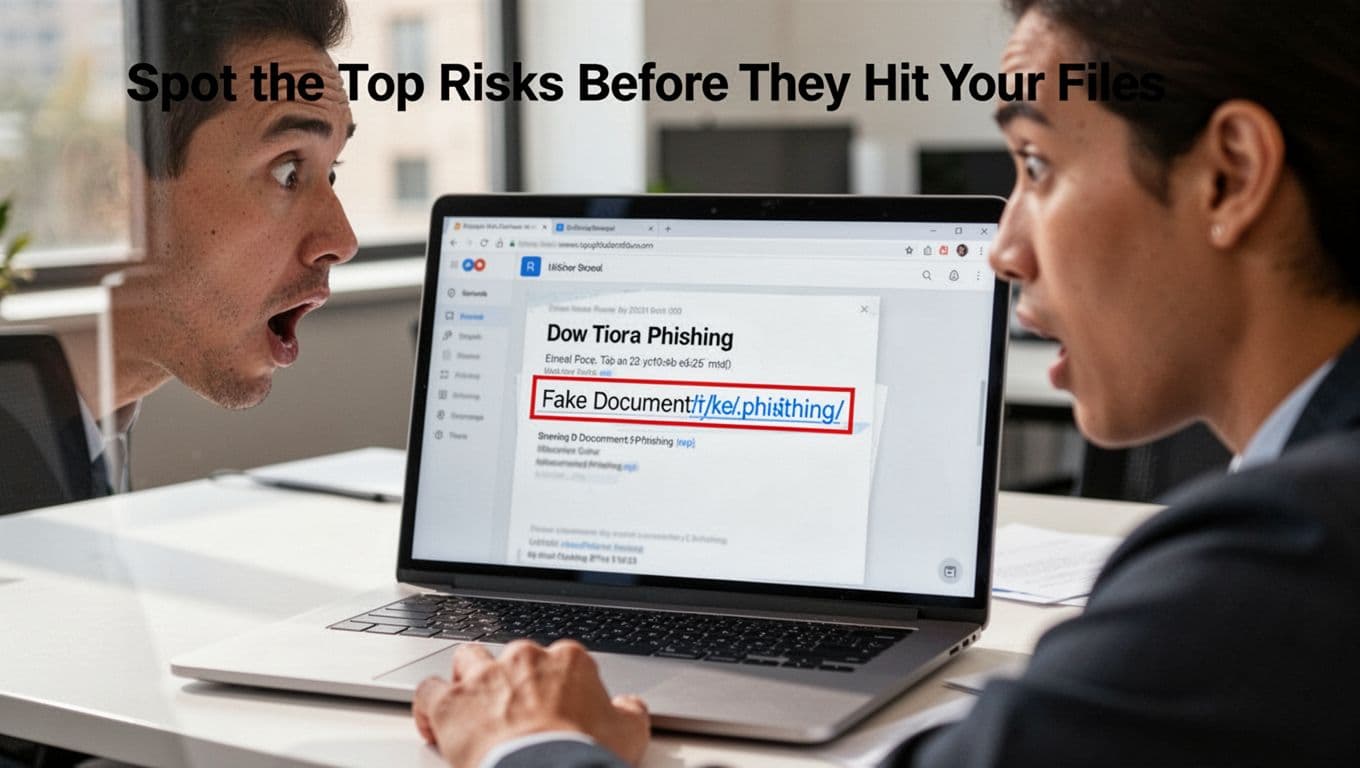
- Phishing and fake links
- Example: You click a “shared Google Docs” link that steals your login.
- 2026 reporting shows file-hosting sites appear in 26% of phishing URLs. Attackers use them to host the bad page or file.
- Wrong permission settings
- Example: You set “anyone with the link” and forget to remove access after a project ends.
- When access stays open, the link becomes a long-lived door.
- Unencrypted files (or weak protection)
- Example: You upload a sensitive file to a place that only “protects” it in transit.
- That means the provider may still have visibility.
- Forgotten access
- Example: A former coworker still has view rights because you shared “once” months ago.
- Access should match the job, not your memory.
If you want a simple way to remember it, think of sharing like handing someone a key. Phishing tries to fool you into copying keys. Permission mistakes copy keys to the wrong people. Unencrypted files leave the keyring out in the open. Forgotten access means you never changed the locks.
Phishing remains a top route into breaches. For example, one US-focused view puts 73% of breaches starting from unauthorized access, and human mistake drives about 60% to 68% of breaches. Training helps too, with reports showing big drops in phishing success after security training.
For more context on phishing numbers, see 81 phishing attack statistics for 2026.
Master These Simple Steps to Share Files Without Worry
You don’t need paranoia. You need a repeatable routine.
Below are practical steps that lower risk without slowing your work. They also fit 2026 trends, like more link expirations, more MFA, and more tools that support stronger encryption.
1) Pick the right permission level
Before sharing, decide what people need:
- view only for reading
- commenter for feedback
- editor only when they truly must change the file
This stops strangers from editing your work.
2) Prefer secure links over raw attachments
In most cases, share a controlled link instead of emailing a file. Attachments spread fast. Links can expire.
3) Add an expiration date to the link
Set the link to expire when the task ends. Old links become target bait later.
4) Put a password on the link when the content is sensitive
Passwords add friction for casual viewers. If someone forwards the link, the password still blocks access.
5) Turn on end-to-end encryption when your tool offers it
End-to-end encryption (E2EE) means only the sender and receiver can read the file. Even the service provider can’t read it.
6) Encrypt files before upload when you can
If you store sensitive files in any cloud, encrypt them first. That way, exposure risk drops even if the storage layer has limits.
7) Use strong, unique passwords
A weak password turns every other control into a backup plan. Use a password manager if you can.
8) Require MFA for your email and file accounts
MFA blocks stolen logins from turning into account takeover. It also helps when phishing tricks someone.
9) Review access after every handoff
After a review cycle, remove access for people who no longer need it. Think of it like clearing visitors from your building.
10) Watch for suspicious “shared document” messages
If a message urges you to log in urgently, pause. Check the sender, the link, and the destination domain.
If you want a deeper checklist style reference, how to securely share files in 2026 covers why E2EE and controlled sharing links matter.
1 short visual you can copy
When you open a sharing dialog, run a quick mental scan: permission level, link type, expiry, and who can access.
Set Permissions That Fit the Job
Permissions sound simple. Yet they cause most “oops” moments.
Use the lowest access that still gets the job done:
- Viewer: for reading and downloading (if allowed)
- Commenter: for feedback without edits
- Editor: for people who must change text, data, or files
Here’s a common trap. Many tools let you choose “anyone with the link.” Avoid that for sensitive files. Instead, share by email with the exact people. That way, the access list stays clear.
Also, watch for shared folders. If you share a folder, permissions can apply to everything inside it. That’s helpful for teams, but risky when the folder mixes public and private work. If you’re sharing both, use separate folders.
Add Time Limits and Password Locks
Expiration dates do two things. First, they cut down the time window for misuse. Second, they reduce “link drift,” where old links live forever in inboxes and chats.
Password locks help even further. If you share a password-protected link, a forwarded message alone won’t grant access.
A good habit: set the expiry to match the deadline. If the review ends Friday at 5 PM, set it close to that time. Then remove access right after the review.
Also remember this: expired links still exist in people’s history. They just stop working. So you still want to avoid public “anyone with the link” access.
Demand End-to-End Encryption Everywhere
End-to-end encryption is easier to understand than it sounds.
In plain terms:
- your device encrypts the file
- the receiver’s device decrypts it
- the service provider stores encrypted data it can’t read
In 2026, E2EE is rising fast. One set of 2026 enterprise-focused reporting says 86% of enterprises demand tools with E2EE and zero-knowledge setups, where the provider can’t view file contents.
How do you check it? Look for wording like:
- “end-to-end encryption”
- “zero-knowledge”
- “only you and recipients can decrypt”
Also check whether the tool offers E2EE for the share itself, not just transport encryption (which only protects data while it moves).
If you want a related guide on why encryption and expiry reduce risk, secure file sharing best practices is a good companion read.
Pick the Best Tools for Bulletproof Sharing
The “best” tool depends on your job and your threat level. A student sharing a paper needs less than a business sharing client health or finance docs. However, everyone should still control access and use strong account security.
Quick tool comparison for safe document sharing
Here’s a simple way to choose without getting lost.
| Tool | Secure sharing strengths | Good for | Watch-outs |
|---|---|---|---|
| Google Drive | Easy sharing, view-only, specific emails | Everyday collaboration | Provider access may exist for unencrypted files |
| Microsoft OneDrive | Office-friendly links and roles | Teams using Microsoft 365 | Strong controls vary by plan and setup |
| Dropbox | Solid permissions and version history | General sharing | E2EE not always default for all use cases |
| Internxt | E2EE and privacy-first design | Sensitive personal or small-team docs | Fewer “enterprise collaboration” features |
| SyncThing | P2P transfers with strong encryption options | Users who prefer device-to-device | Setup needs more attention |
For a broader list of file sharing options for teams, see 10 best file sharing tools for teams (2026).
Most people fall into two groups: they either want tight controls in common cloud apps, or they want true zero-knowledge style protection.
Everyday Picks: Google, OneDrive, and Dropbox
If your team already lives in Google or Microsoft, don’t fight the workflow. Use the secure options those tools already offer:
- share via specific emails
- use viewer or commenter when possible
- set an expiration date
- turn on MFA for the account
Then, for higher sensitivity files, add an encrypted layer before upload, or switch to a tool with E2EE when the content matters most.
Also, avoid the temptation to share “just this once.” That habit turns into “always shared.”
Privacy Champs: Internxt and SyncThing
If your priority is maximum privacy, privacy-first tools can help.
- Internxt focuses on encryption so the provider can’t read files.
- SyncThing aims for decentralized transfers, so files move directly between devices.
These can be great for contracts, medical docs, and personal records. Still, use them with the same discipline: permissions, MFA, and safe sharing habits.
If you want a third-party comparison of cloud providers, best cloud storage 2026 providers compared can help you evaluate mainstream options too.
Long-Term Habits and Team Strategies That Stick
Tools help, but habits keep you safe after the first month.
First, review access on a schedule. For example, every two weeks, scan shared links and remove access that no longer fits the task. Then, do the same after projects end.
Second, encrypt attachments when you must email. If a tool forces you to send an actual file, protect it. Use a password-protected archive or an email tool that supports secure delivery. Then send the password separately when possible.
Third, add a simple team rule. Everyone should get the same routine:
- share with specific people
- set expiry for time-limited work
- remove access after the review
- verify link destinations before login
Finally, track what happens in real life. If someone clicks suspicious messages, fix the process. If people keep sharing too broadly, update the default settings in your org.

Here’s a gotcha to remember: phishing isn’t only email. Reports in 2026 note 19% of breaches start with smishing (text phishing) or vishing (voice phishing). So your team needs the same caution in texts and calls.
If you only change one thing, start with MFA plus link expiry. Those two cuts risk fast.
If you must email, keep it boring and controlled. Share a secure link whenever you can. If you can’t, encrypt the attachment, use passwords, and limit who receives it.
For more cloud-protection best practices, protect confidential documents in the cloud (2026) offers useful context on why access controls matter so much.
Make Secure Sharing Your Default
The hook from this whole post still stands. A wrong click can cost time and money. But secure file sharing is not hard once you follow a routine.
Focus on three moves: set permissions correctly, add expiry and passwords for sensitive files, and use E2EE when your tool supports it. Then back it up with MFA and short training for anyone who shares documents.
Pick one share you made recently. Update it today. Enable MFA if it’s missing. Then try a privacy-first tool for the files that matter most.
Ready to move faster next time? Create a simple checklist in your notes app, and save it next to your sharing workflow. What’s the first share you’ll tighten up?