
You know that feeling when you’re halfway through a task, then you waste 20 minutes hunting for a sentence in a long PDF. Or you spot an error and realize you have to fix it everywhere, one copy at a time.
Simple speed habits help you stop the slowdowns. With the right shortcuts, a couple of Google Docs and Sheets tricks, and smarter file handling, you can finish edits faster and stay calmer.
And since March 2026 updates keep adding AI features in Google Workspace, there’s more reason to tighten your workflow now. The goal is simple: do the same work with fewer clicks, fewer tabs, and less backtracking.
Start with keyboard shortcuts, then level up your Google tools, and lock it all in with daily habits that compound over time.
Master Keyboard Shortcuts to Skip the Mouse Clicks
If your hand always reaches for the mouse, you pay a time tax every minute. Keyboard shortcuts feel small at first, but they stack fast. In practice, they reduce “where am I?” moments, especially in long documents and scanned PDFs.
Here’s a shortcut truth: most people know copy and paste. Speed comes from the shortcuts you use every day to search, replace, and move around quickly. If you want a bigger list, this A to Z Google Docs shortcut list is a helpful reference.

Try this mindset: use your keyboard first, then let the mouse only handle what keyboards can’t. This makes your workflow feel more like typing, not clicking.
Hunt Down Text Without Endless Scrolling
When you need one quote, one number, or one heading, scrolling is wasted effort. Use Find to jump straight to the text.
- Windows/Linux: press Ctrl+F
- Mac: press Command+F
Then type the words you want. Next, use the results buttons (or Enter) to jump forward and backward through matches.
In most apps, Ctrl+F also works in PDFs and Word files, as long as the text is searchable. For scanned images, you may need OCR first (more on that later). Also, some viewers offer case-sensitive or whole-word options, depending on the app.
Real scenario: you’re editing a 50-page homework packet and need the exact line that defines “primary source.” Press Ctrl+F, type the phrase, jump to the match, and fix it. You’ll feel the time savings immediately.
Fix Repeated Mistakes in One Go
Spotting one typo is annoying. Spotting 40 of the same mistake is where work turns into misery. That’s why Find and Replace is a must.
The shortcut is:
- Windows/Linux: Ctrl+H
- Mac: Command+Option+H in some apps (many Google tools support Command+H equivalents, but layouts vary)
In Google Docs and many document editors, you open Find and Replace, then search for the old text and swap in the new text.
Steps that keep you safe:
- Enter the old text (example: “Northside High”).
- Type the new text (example: “Northside High School”).
- Preview or review matches.
- Replace one at a time if you’re not sure.
- Replace all only after quick checks.
Why it saves time: you fix every instance while your brain is still focused on the same issue. For example, you might update a contract where the company name appears in multiple places. Replace once, double-check, then move on.
Pull Up Every Shortcut You Need Instantly
Want fewer “How do I do this again?” moments? Use the built-in shortcut list.
In Google Docs, press:
- Ctrl+/ on Windows
- Command+/ on Mac
This shows a panel of shortcuts so you can pick the next action fast. It’s ideal when you’re stuck mid-task. Instead of searching the web, you pull up the help list right where you work.
In many apps, shortcuts also follow familiar patterns. Copy is still Ctrl+C, undo is still Ctrl+Z, and find is still Ctrl+F. That consistency means your muscle memory grows across platforms.
Try it for homework: you’re editing an essay, then you need citations. Instead of hunting through menus, open the shortcut list and jump to the commands you use most.
The fastest workflow is the one you don’t have to think about.
Google Docs and Sheets Tricks for Lightning-Fast Editing
Keyboard shortcuts get you moving. These Google Docs and Sheets tricks help you finish tasks without turning your work into a messy folder of tabs.
Also, March 2026 updates bring new AI features into Workspace. For many tasks, you can get a solid first draft or a quick starter sheet without setting everything up manually. That can save real time when you’re on a deadline.
Research and Insert Images Without New Tabs
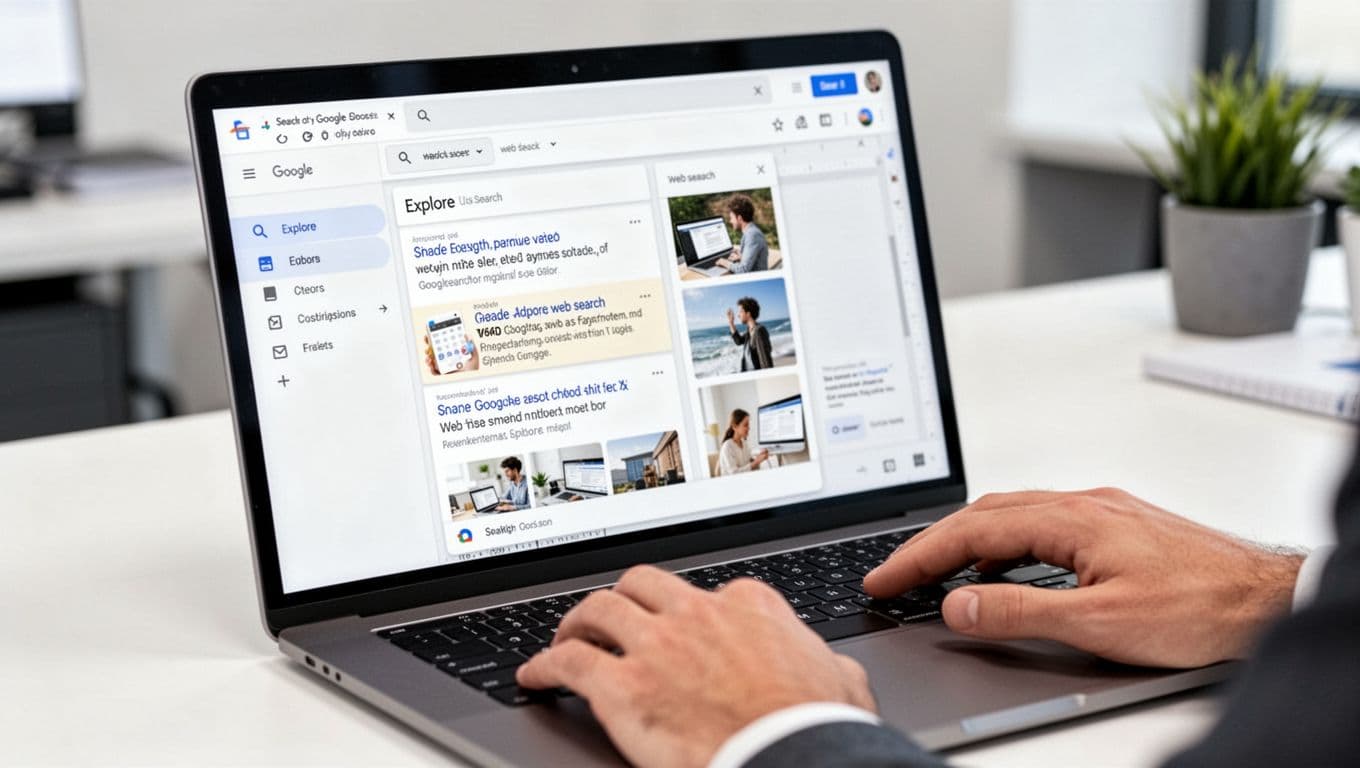
Long reports need visuals. Instead of switching to a browser for stock photos, use Explore inside Google Docs.
In Google Docs:
- Go to Tools > Explore
- Highlight a keyword or sentence (example: “workspace safety”).
- Then insert an image suggestion from the Explore panel.
Because Explore pulls in results from the web and your Drive, it can help you find a relevant image quickly. You can also use it to add a citation-style reference, depending on what you’re inserting.
Example: you’re building a school presentation and need an image about “local plants.” Highlight the topic in your draft, open Explore, then insert an image suggestion. Your research stays in one place.
For more Sheets-style tips that reduce setup time, check Google Sheets tips and tricks for faster work.
Jumpstart with Pre-Made Templates
Starting from a blank page wastes time. You don’t need a fresh layout every time you write a resume, letter, or newsletter.
In Google Docs, use templates:
- Open File > New > From template
- Pick a resume, letter, or basic document layout.
- Replace the placeholder text.
Templates also help when you’re converting work from Microsoft Word. In Google Drive, you can often right-click a file and use a Google conversion option to keep the content usable in Google Docs.
Real scenario: you need a cover letter for three job applications. Use a template once, then replace details for each role. That’s less formatting work, fewer mistakes, and faster submission.
Make PDFs and Images Editable in Seconds
When your “document” is a PDF or image scan, the biggest slowdown is text you can’t edit. Google Docs can help if the content is OCR-friendly.
Try this workflow:
- Upload the PDF or image to Google Drive.
- Right-click the file.
- Choose Open with > Google Docs (or a similar option).
- Review the extracted text.
- Edit as needed, then keep the original file in Drive.
Why this helps: you avoid retyping whole sections. You also reduce manual copy issues when the source is scanned.
Then when you’re done, export only what you need (like a clean PDF). This keeps your editing flexible without destroying the original source.
Tidy Up Spreadsheets Without Messy Columns
Sheets get frustrating when text spills into random cells. The fix is usually formatting, not data.
For text wrapping:
- Select the cells.
- Go to Format > Wrapping > Clip (or Wrap if you want lines inside the cell).
If your rows still look cramped, zoom helps:
- Use View > Zoom
Example: you’re reviewing sales notes in a sheet. Long comments look chaotic. Clip or wrap the text, then zoom so you can scan. Your spreadsheet becomes readable again, fast.
Also, March 2026 AI features can reduce setup time. In Sheets, you can describe what you need in plain language and get a starter layout with tabs, columns, and formatting. That’s especially useful when you’re building a tracker for a new project.
Streamline File Handling to Find Anything Fast
Speed drops when files hide in folders or when you can’t remember which version you used. Drive can fix a lot of that with smart habits.
Instead of “cleaning up” once a month, you want a system that works every day. The system is simple: find the right file quickly, then edit in the right place.
Save Web Files Straight to Drive
If you download PDFs and forget where they landed, you create future chaos.
A better approach is to use the Save to Google Drive browser option. After you install it, you can save pages or files directly to Drive from your browser. That means fewer downloads, fewer desktop messes, and faster retrieval later.
Workflow tip: save immediately into a folder that matches the project name. When you return later, Drive search becomes your shortcut back to the task.
Spot Your Latest Files Right Away
Most of the time, you don’t need to search the whole Drive. You need the last version you touched.
In Drive, use the Recent area (often visible right after you sign in). It surfaces your latest files without you hunting.
If you want a deeper approach to folders, sharing, and organization, see Google Drive like a pro features you should know.

Edit Files Without Forced Conversions
Converting every document slows you down. It can also cause formatting shifts.
Instead, use the option that matches the file type and your goal. For example:
- For text edits, open with a compatible editor when it makes sense.
- For feedback, use comments in the viewer when the file preview supports it.
In many cases, Drive lets you add comments on Office and PDF files directly in the preview experience. If comments don’t work the way you need, then converting (like opening with Google Docs) becomes the backup plan.
Bottom line: convert only when you need text extraction or deeper editing. Otherwise, stick with the simplest option.
Daily Habits That Make You a Document Speed Demon
Shortcuts and tools help. Habits make them stick.
When you change your routine for one week, you start building speed you can feel. Then tasks go smoother because your brain expects less friction.
Watch Your Word Count Live as You Write
Word limits are common. Essays have requirements. Emails have “keep it short” rules. Instead of guessing, show the count while you write.
In Google Docs, open:
- Tools > Word count
- Turn on display while typing
Then you can see the number update in real time. That prevents last-minute panic when you realize you’re 120 words over the limit.
Real scenario: you’re writing a discussion post. You keep the tone tight because you can track your length as you add examples. You don’t need to copy text into another tool.
Speak Your Document into Existence
Typing is great for facts and precision. But when you’re stuck, voice typing can restart your flow.
In Google Docs:
- Go to Tools > Voice typing
- Click the microphone
- Start speaking at a steady pace
For better results, speak in short chunks. After each chunk, pause and review. Then continue. Also, choose a quiet spot to reduce background noise.
Voice typing works well for:
- rough drafts
- outlines
- first-pass summaries
If you want a guide with common setup tips, see voice typing in Google Docs.

Put these speed tips to work today
Start small. Use Find and Find and Replace until they feel automatic. Then add one Google Docs or Sheets trick that removes a daily pain point, like templates or Explore.
Finally, tighten your file habits. Save to Drive, check Recent, and convert only when you truly need editing power.
This is how you get the same work done faster, with less stress. Which one tip will you try today, keyboard shortcut first, or a Google trick first?